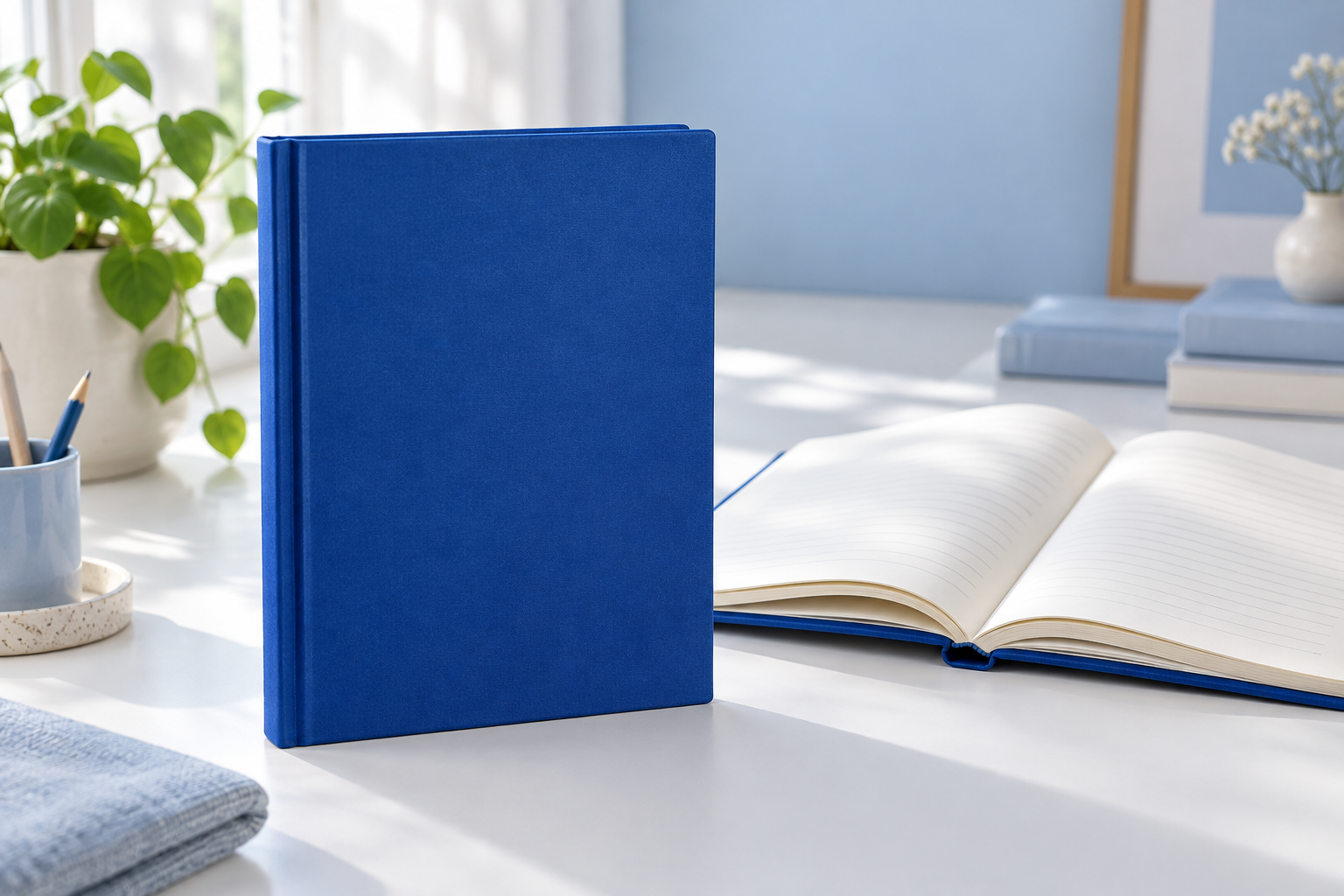
AI-generated fictional practice imagery. Use your own accurate product photos for a real listing.
Create a product with a name, price and photos, then save it as a draft and check the preview before you publish. This guide uses a fictional notebook so you can practise without changing a real listing.
If you followed the WordPress Tiled Gallery tutorial, the Media Library will feel familiar. WooCommerce has its own Product image and Product gallery controls. You do not need to insert a Tiled Gallery block into the product description.
Watch the product walkthrough
This demonstration uses a fictional practice product. The written steps and screenshots below let you complete the task without playing the video.
Text version of the walkthrough
Let's add a WooCommerce product with photos, then check its draft.
In your practice site, choose Products, then Add new product. Name it Practice notebook. Add the longer product description, then a short description below. Use the practice text from the article. We're making a draft, so there's no need to publish.
Keep Simple product selected. For this physical notebook, leave Virtual and Downloadable unchecked. Under General, enter twelve in Regular price. Leave Sale price empty. Your store supplies the currency.
Choose Set product image. Select the front-view practice image, or upload it first. Check the useful alt text, then choose Set product image again. This main image has its own panel; you don't need a Tiled Gallery block.
Choose Add product gallery images. Select the open-notebook image, then Add to gallery. Keep the front view as the main image. It already appears first, so you don't need to add it twice.
Choose Save Draft in the Publish panel. Wait for the saved message, then refresh. Check the name, price and both images. Status should still say Draft. Visibility: Public does not mean this draft is published.
Choose Preview. Check the name and price, switch to the extra image, and read both descriptions. Your theme may arrange them differently. Return to the editor and confirm Draft. That's the product saved. Shipping, tax and payments still need their own checks.
For optional tools, explore WooCommerce Marketplace and Pressable hosting. When you use my affiliate links, I may earn a commission. The full written guide is at danielk dot am.
In this guide
- Before you begin
- 1. Open a new product
- 2. Choose the product type and enter a price
- 3. Set the main product image
- 4. Add an extra photo to the product gallery
- 5. Save the draft
- 6. Preview and check the result
- If something looks wrong
- Your turn
- Sources
Before you begin
Use a practice WordPress site with WooCommerce already installed and an account that can manage products. Have a product name, an accurate description, a price and images you have permission to use. This lesson covers a simple physical product with no selectable sizes or colours. Products with those choices need variations.
The screenshots use WordPress 7.1.3, WooCommerce 11.2.1 and the standard product editing screen. Your theme may show the finished product differently. If your editor does not have the panels shown here, identify the editor or extension in use before following a different set of controls.
For the exercise, use Practice notebook, a regular price of 12.00, and the two supplied practice images. The number uses your practice store’s currency. The example images are AI-generated illustrations of a fictional notebook, not photos of an item for sale. Shipping, tax, stock and payment setup are separate tasks.
Download the practice images and exercise sheet (ZIP), or open the front-view image and open-notebook image individually.

1. Open a new product
In your WordPress dashboard, choose Products → Add new product. Enter Practice notebook in Product name.
In Product description, add: “A fictional notebook used to practise creating a WooCommerce product. Replace this sample text with verified details about your own product.”
Further down the screen, find Product short description and enter: “A fictional notebook for practising WooCommerce. Not for sale.” This keeps the short introduction separate from the longer description. Your theme controls where each appears.
2. Choose the product type and enter a price
Find Product data. Leave the type as Simple product. For this physical notebook, keep Virtual and Downloadable unchecked.
Choose General, then enter 12 in Regular price. Leave Sale price empty for this exercise. Enter a number without a currency symbol; the store supplies its configured currency.
Check the product type before moving on. If you selected External/Affiliate product, you will see fields for a product URL and button text instead of the same simple-product setup.
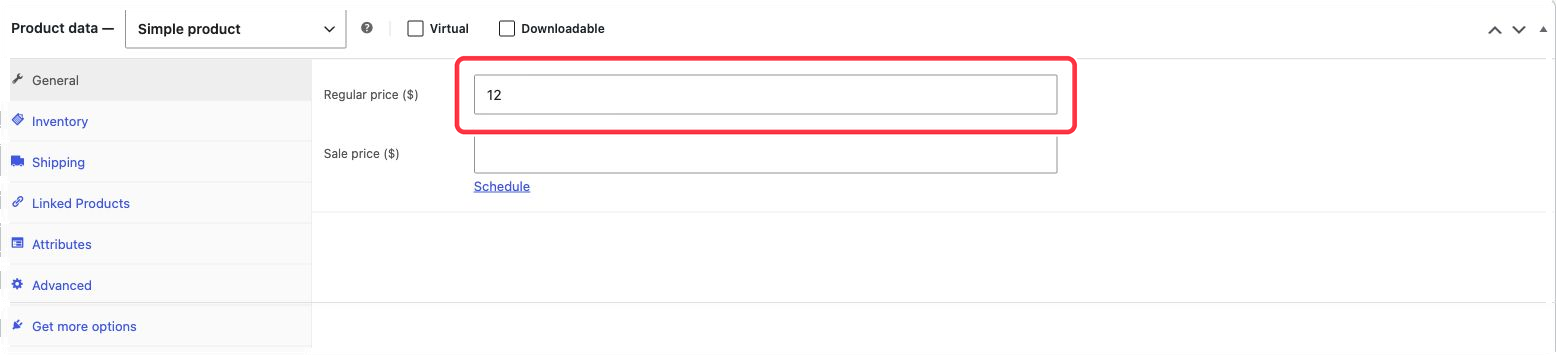
Keep Simple product selected and enter a Regular price.
3. Set the main product image
In the Product image panel, choose Set product image. Select the front-view practice image in Media Library, or use Upload files to add it first.
With the image selected, write useful Alt Text, such as “Blue practice notebook on a white desk”. Choose Set product image at the bottom of the dialog.
You should now see the image in the product’s image panel. This is the main picture. WooCommerce reuses it across product displays, so choose a clear view that identifies the item.
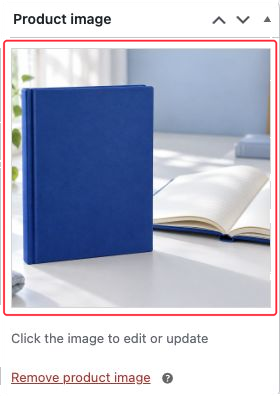
The main image has its own Product image panel.
4. Add an extra photo to the product gallery
Find Product gallery, then choose Add product gallery images. Select the open-notebook image and choose Add to gallery.
The extra image should appear as a thumbnail in Product gallery. Keep the front view in Product image; you do not need to add it to the gallery again. WooCommerce places the main image first in the product-page gallery.
If you add several extra images, drag their thumbnails into the order you want. To remove one from the gallery, use the remove control on its thumbnail. Removing a gallery item keeps the file in the Media Library. Delete permanently in the Media Library is a different action and is not needed here. See WooCommerce’s image and gallery instructions.
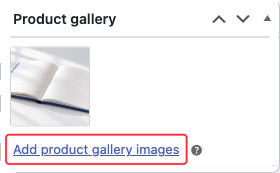
Extra photos go in Product gallery.
5. Save the draft
In the Publish panel, choose Save Draft. Wait for Product draft updated before leaving the editor.
Choosing Set product image or Add to gallery only selects images for the product you are editing. Save Draft saves the product’s changes. Leave Publish alone while practising on a real store: this exercise finishes with a draft.
Refresh the editor and check that the name, price, main image and gallery thumbnail are still there. Confirm that Status remains Draft. The separate Visibility: Public line does not mean the draft has been published.
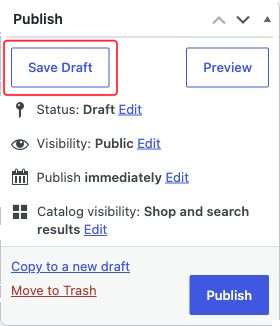
Save Draft persists the product. Status remains Draft.
6. Preview and check the result
Choose Preview in the Publish panel, or Preview product in the saved confirmation. The preview may open in a new tab and depends on your signed-in editing session.
Check the following against your saved product:
- The name is Practice notebook.
- The price matches the 12 you entered, formatted in the practice store’s currency.
- The front view is the main image, with the open notebook available as an additional view.
- The short description and longer description contain your practice text.
- Returning to the editor still shows Draft.
If your theme places the description under a tab, open it to check the full text. Use this preview to correct the listing; it does not establish that shipping, taxes or checkout are ready.
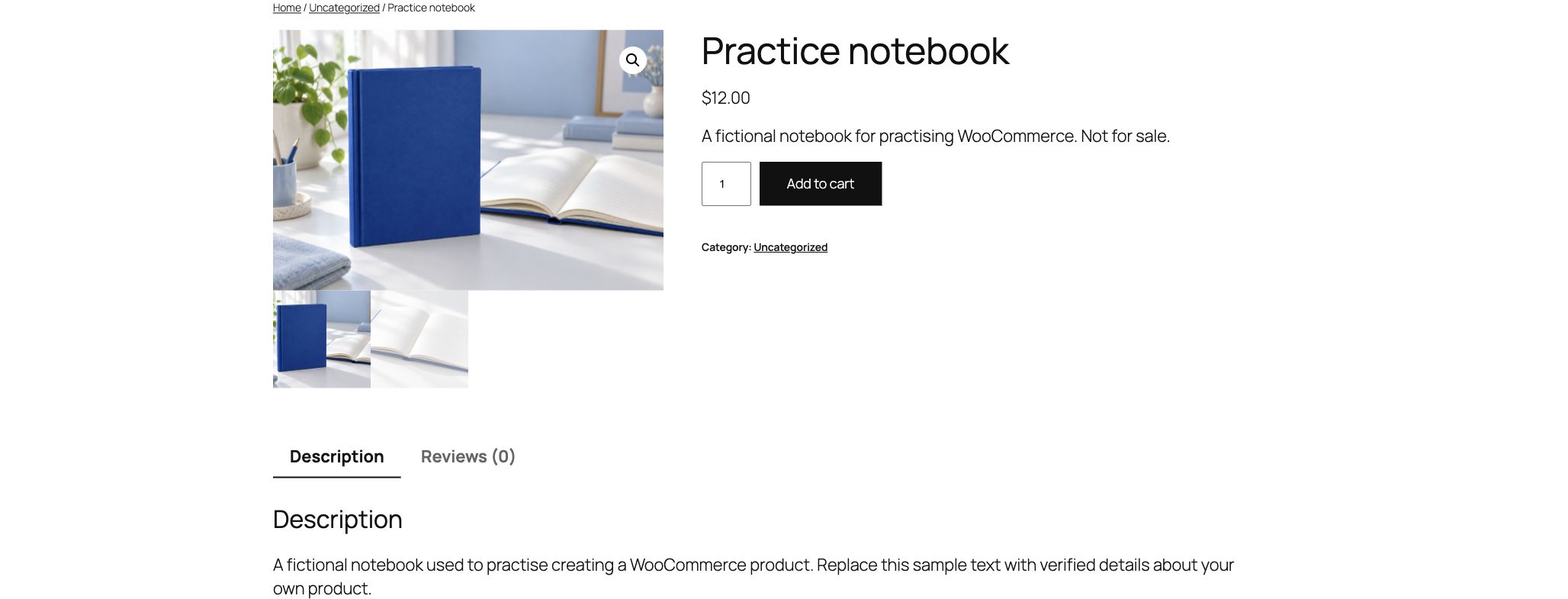
The saved practice product in the Twenty Twenty-Five preview. Your theme may lay it out differently.
If something looks wrong
Products is missing from the dashboard. Confirm that WooCommerce is active and that your account can manage products. Ask the site administrator if you do not have access.
Product image or Product gallery is missing. On the standard editor, open Screen Options at the top and check that the panel is enabled. If your site uses a different editor, its controls may differ.
The photo did not stick. Check both actions: select the image with Set product image or Add to gallery, then choose Save Draft for the product. Refresh and check again.
The preview has no price. Return to Product data → General, check Regular price, and save the draft. An empty price field is different from a price of zero.
The main photo appears twice. Remove the duplicate from Product gallery, keep the intended main photo in Product image, and save again.
The preview differs from the screenshots. Product layouts and gallery features depend on the theme and product template. Compare your saved content and image order first, rather than changing the site’s template to match this lesson.
Your turn
Change the short description to “My practice product draft”, save, refresh and preview again. You have completed the exercise when the new text persists, both images remain attached, and the product still has Draft status.
To tidy up, return to Products → All Products and move only your practice product to Trash. Keep the image files if another lesson needs them.
For a real listing, replace all practice content with verified product details and review it before publishing. The next planned guide covers product categories. It will be linked here once it is available.
Sources
- WooCommerce: adding products and simple products
- WooCommerce: product images and galleries
- Previous lesson: add photos to a WordPress Tiled Gallery
Instructions checked in an isolated practice site on 18 October 2026. No real order or payment is part of this exercise.