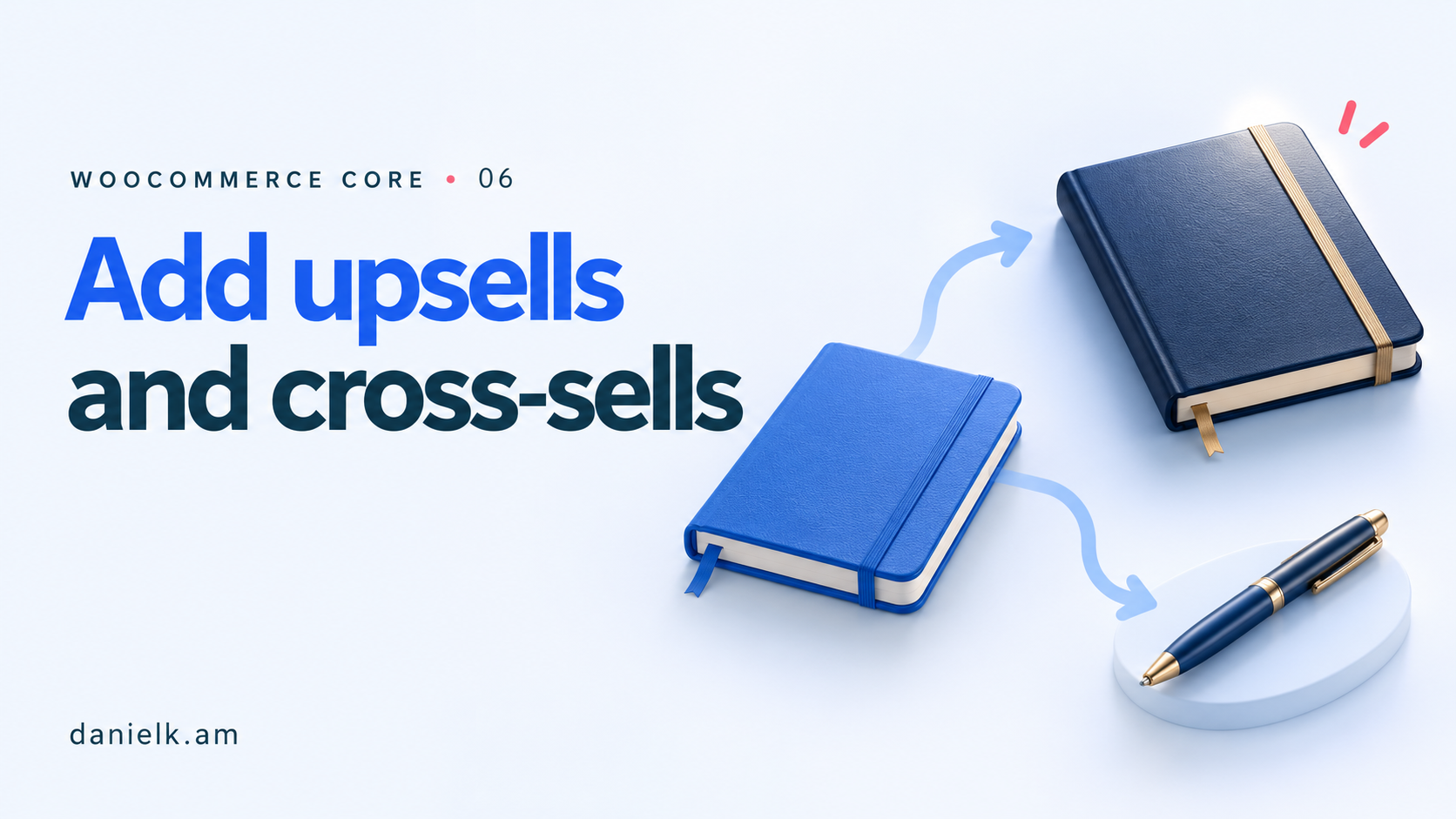
Use an upsell to suggest an alternative to the product someone is viewing. Use a cross-sell to suggest something that goes with an item already in their cart. WooCommerce lets you save these relationships in a product's Linked Products settings.
For this exercise, a fictional premium notebook is the alternative and a fictional pen is the companion. You'll save both links, then check whether your theme and cart actually show the recommendations.
Saving a relationship and displaying a recommendation are separate checks. The placement depends on the active theme, templates and cart implementation.
Video companion
In this guide
- Before you start
- 1. Decide which recommendation has which job
- 2. Open Linked Products on the starting product
- 3. Add the alternative as an upsell
- 4. Add the companion as a cross-sell
- 5. Check the product-page recommendation
- 6. Check the cart recommendation
- How related products differ
- Finish and restore
- Source
Before you start
Use an isolated WooCommerce practice store with three simple, in-stock products:
- Practice ruled notebook: the item the shopper starts with.
- Practice premium notebook: an alternative notebook, with a fictional price of 20.
- Practice pen: a complementary item, with a fictional price of 3.
Use the store's configured currency and truthful exercise descriptions. The product names and prices don't represent a real offer. If you need the product-creation steps, follow adding a simple product with photos.
Keep a record of Practice ruled notebook's existing linked products. Use published fixtures only in the isolated practice store for the shopper-facing checks. No payment method or completed order is needed.
The steps below follow the documented classic product editor. A different editor may arrange linked-product settings elsewhere.
1. Decide which recommendation has which job
Imagine someone looking at Practice ruled notebook. If the premium notebook suits their needs better, it is an alternative to consider instead of the original. That makes it the upsell in this example.
The pen doesn't replace the notebook. It is useful alongside it, so it is the cross-sell.
A more expensive product isn't automatically a useful recommendation. In a real shop, make the difference clear with accurate descriptions and prices so a shopper can decide whether the alternative fits. Don't invent quality claims just because an item is labelled premium.
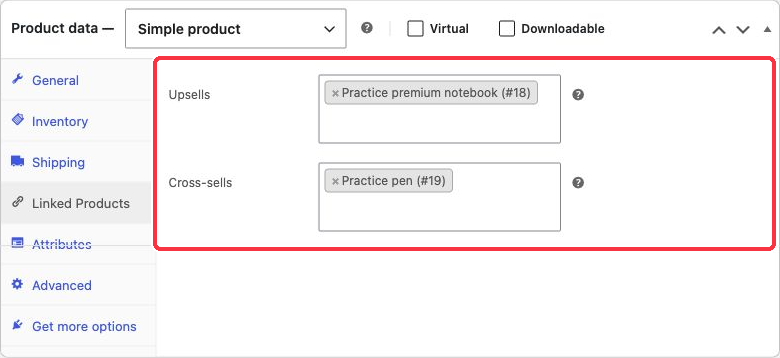
Isolated practice store: WordPress 7.1.3 and WooCommerce 11.2.1. Linked product settings showing a premium notebook upsell and pen cross-sell.
2. Open Linked Products on the starting product
Go to Products → All Products, open Practice ruled notebook, and find Product data → Linked Products.
Work on the starting product, not the product you want to recommend. You're specifying what to offer when someone views or buys this notebook.
You'll find separate fields for Upsells and Cross-sells. Search by a distinctive product name to avoid selecting another fixture with a similar title.
3. Add the alternative as an upsell
In Upsells, search for Practice premium notebook and select the correct result. Check the selected product name before continuing.
You can link more than one product, but use one for this first exercise. That makes it easier to see whether the intended relationship was saved and displayed.
Do not assume that adding a link here creates a reciprocal recommendation. You are editing this product's list. If you want a different relationship on the premium notebook, inspect and configure that product separately.
4. Add the companion as a cross-sell
In Cross-sells, search for Practice pen and select it. Keep the premium notebook in Upsells and the pen in Cross-sells so their different jobs remain clear.
Choose Update for the published practice fixture. Reload the editor and reopen Linked Products. Both selected names should still be present in their respective fields.
If a selection disappeared, fix and save it before checking the storefront. A typed search term isn't the same as a selected, saved product relationship.
5. Check the product-page recommendation
Open Practice ruled notebook's product page from a logged-out view of the isolated store. Look for the premium notebook recommendation. In themes that display upsells, it appears on the single-product page, with the exact location determined by the template.
Open the recommendation and check that it leads to the intended product with its own correct price and description. This catches a link to a similarly named fixture even if the card initially looked plausible.
If no recommendation appears, first confirm the relationship was saved and that the recommended fixture is published and available. Then inspect the active product template's support for upsell output. A missing section isn't proof that the link wasn't saved.
6. Check the cart recommendation
Empty the practice cart, then add Practice ruled notebook. Open the cart and look for Practice pen among any cross-sell recommendations.
The cart is the relevant context because the companion is associated with an item already added. Exact display and placement vary by theme and whether the store uses the classic cart or a block-based cart with its supporting recommendation area.
If the cart doesn't render cross-sells, retain the correct saved relationship and check the cart's supported configuration. Don't install an extension or rewrite the template just to finish this exercise. Record that display remains a separate configuration task.
How related products differ
A theme may also show a Related products section. WooCommerce generates those suggestions from shared categories or tags. You don't manually select that list in the Upsells field.
Changing a product's categories to force a particular recommendation would also change its catalogue organisation. Use linked products for the deliberate alternatives and companions in this exercise, and leave category changes to a separate catalogue decision.
Don't rely on the order of recommendation cards as the test. Check whether the intended item appears and opens correctly. The official guide notes that these recommendation lists can be randomly sorted.
Finish and restore
The settings exercise is complete when both relationships survive reload. The shopper-facing check is complete only when you have observed the supported product-page and cart output, or recorded the exact missing display support.
Restore the original upsell and cross-sell selections, update, and confirm the saved result. Empty the cart and return temporary fixtures to their previous status. No purchase or affiliate link is needed to learn these built-in relationships.