Use a variable product when a shopper needs to choose an option before buying, such as a notebook size. The attribute names the choice; the variations are the versions you actually offer, with their own prices and availability.
You'll create one fictional notebook with A5 and A6 options, give each a price and stock quantity, then check that the selected size reaches the cart. You don't need a swatch or product-options extension for this exercise.
Video companion
In this guide
- Before you start
- 1. Create a separate product
- 2. Add the size attribute
- 3. Create the two variations
- 4. Set each variation's price and stock
- 5. Check the shopper's choice
- If an option can't be bought
- Finish and undo
- Source
Before you start
Work in an isolated WooCommerce practice store. You should already know how to create a simple product with photos and understand quantity tracking. Use fictional data, with no real orders or stock integrations.
The instructions follow WooCommerce's documented classic product editor. If your product editor has a different layout, locate its corresponding attribute and variation controls rather than combining steps from unrelated interfaces.
Use this practice specification:
| Choice | Regular price | Quantity | Backorders |
|---|---|---|---|
| A5 | 12 | 3 | Do not allow |
| A6 | 10 | 3 | Do not allow |
Prices use the practice store's configured currency. The values are exercise data, not a product offer.
1. Create a separate product
Choose Products → Add new product and name it Practice notebook with sizes. Add a short description explaining that it is a fictional training item, plus a useful main product image.
In Product data, change the product type to Variable product. Keep Virtual and Downloadable unchecked for this physical-notebook example.
Use a new fixture rather than converting an existing real product. This keeps the exercise's settings and reset straightforward.
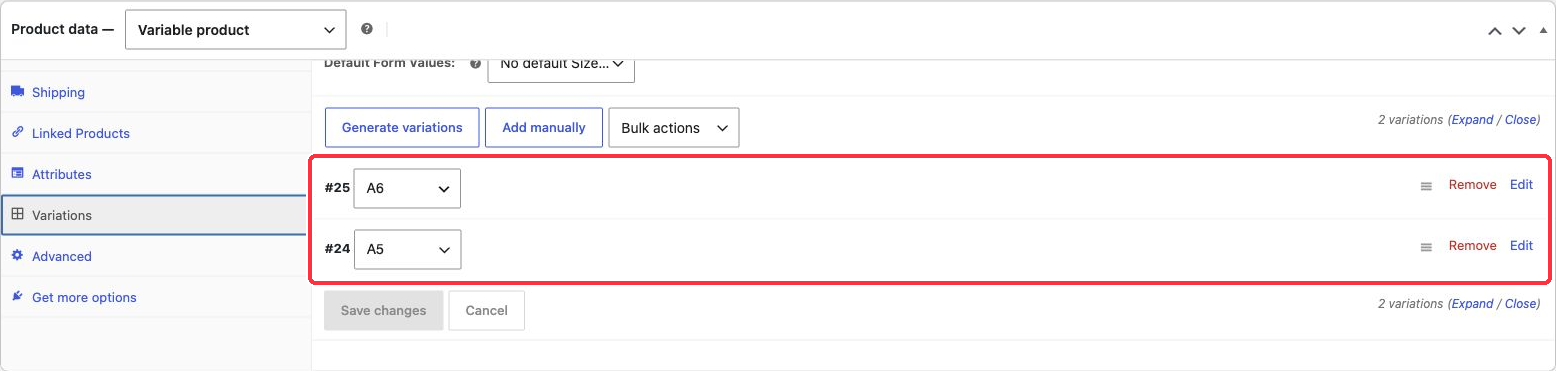
Isolated practice store: WordPress 7.1.3 and WooCommerce 11.2.1. Two notebook variations, A5 and A6, saved in the variable product editor.
2. Add the size attribute
Open Attributes. For this one-product exercise, add a new product-specific attribute named Size. Enter A5 | A6 as the values, using the vertical bar to separate them.
Enable Used for variations, then save the attributes. You can also show the attribute on the product page if the editor offers that choice. Visibility in an information panel and use for variations are separate settings.
A global attribute is useful when many products share the same options. A product-specific attribute keeps this exercise small. Don't create both versions of Size just to make the selector appear.
3. Create the two variations
Open Variations and choose the action to generate variations from the saved attributes. Confirm that you want to create the combinations.
Because this exercise has one attribute with two values, you should end up with one A5 variation and one A6 variation. Check the actual rows before continuing. Don't repeatedly generate them to fix a missing price.
Expand each variation. Use its specific size value rather than leaving Any Size selected. Broad “Any” choices can overlap with specific variations and make it harder to understand which one matches a shopper's selection.
4. Set each variation's price and stock
For A5, enter a regular price of 12. For A6, enter 10. Each purchasable variation needs a price; setting an attribute value alone doesn't make it ready to buy.
This exercise tracks inventory separately for each size. Ensure stock management is enabled in the practice store's inventory settings. Leave parent-product quantity management off, then enable stock management inside each variation. Enter quantity 3 for each size, and disable backorders for both.
Keep the variations enabled. Leave sale prices empty so the price result is easy to inspect.
You may assign a different primary image to each variation if you have accurate images for each size. That is optional here. Don't use a photo to imply a size or feature it doesn't show. The parent image is enough to complete the size-and-price exercise.
Choose Save changes in the Variations section. Save the whole product as a draft while preparing it, or update the existing published practice fixture. Reload the editor and confirm both prices, size values and quantities survived.
5. Check the shopper's choice
For the cart check, publish this fixture only in the isolated practice store. Open its product page and choose A5. Check the displayed price and availability, then add one to the cart.
Inspect the cart line. It should identify the A5 choice with its corresponding price. Remove it, return to the product and repeat for A6.
The exact selector and price presentation depend on the theme. You might see a starting range before selecting an option. Judge the selected variation and cart result, not whether the page matches another theme's screenshot.
Leave default form values unset for this exercise so you practise making the choice. A default can preselect an option later, but it doesn't replace creating and pricing the variations.
If an option can't be bought
Open the affected variation and check its enabled state, exact size, price and stock settings. A missing price or unavailable stock can prevent purchase even though the attribute exists.
If neither size appears, check Used for variations, save the attributes and inspect the generated variations. If you changed the attribute values after generating them, check that each variation still matches the intended values.
If both sizes draw from one shared count, inspect parent-level stock management. This exercise needs independent counts, so each variation owns its quantity. A shared parent count is a different stock model, not automatically a defect.
Finish and undo
You have finished when each size can be selected, its price is correct, and the matching size appears in the cart. Reopen both variations to verify the saved settings once more.
Empty the practice cart. Keep the fixture as a draft for another lesson or move this exercise product to the trash when no longer needed. Because Size was product-specific, you don't need to delete a shared global attribute used by other products.