
A scheduled sale lets you keep a product's regular price while applying a lower price for a chosen date range. For this exercise, you'll give a fictional notebook a regular price of 12, a sale price of 9, and a short practice schedule.
You'll check the saved dates and the actual price shown to a shopper. Saving a date range is the setup; seeing the correct price at the right point in the schedule is the result.
Video companion
In this guide
- Before you start
- 1. Check the site's timezone
- 2. Enter the regular and sale prices
- 3. Add the date range
- 4. Inspect the price before the sale
- 5. Check the active and ended states
- If the price doesn't match the schedule
- Finish and restore the fixture
- Sources
Before you start
Use an isolated WooCommerce practice store and a simple product named Practice sale notebook. If necessary, follow the simple-product lesson to create it. Use a copy for this exercise rather than altering a real promotion.
The steps follow the documented classic product editor. Variable products keep their prices in individual variations, so use a simple product for this lesson.
Write down the existing regular price, sale price and any sale dates. All amounts use the store's currency. The exercise doesn't set your tax rules or change that currency.
1. Check the site's timezone
Open Settings → General in WordPress and inspect Timezone. Record it beside your planned dates. Don't change the whole site's timezone to make a sale start sooner.
WooCommerce's sale dates are interpreted in the site's timezone. The classic editor describes the start as the beginning of the From date and the end as the end of the To date. That means the To date is included; it isn't an instruction to stop as soon as that day begins.
For example, a sale from Tuesday through Thursday is intended to cover all three dates in the site's timezone. Don't use your own laptop's date as the only check if it differs from the store.
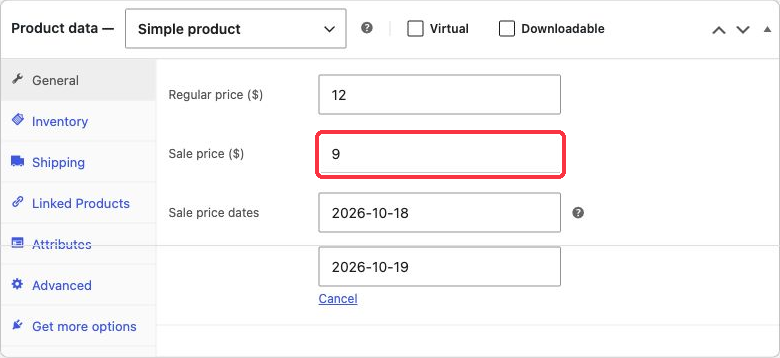
Isolated practice store: WordPress 7.1.3 and WooCommerce 11.2.1. Regular price 12, sale price 9 and scheduled sale dates in product settings.
2. Enter the regular and sale prices
Open the practice product and choose Product data → General. Enter 12 in Regular price and 9 in Sale price. Leave any previous schedule out of the way before creating the new one.
The sale price should be lower than the regular price. Keep the regular price unchanged so you can see what the product returns to after the promotion.
This is a product sale price. A coupon is a separate discount mechanism, with its own conditions. Empty any practice cart and remove coupons before checking this exercise so an additional discount doesn't obscure the result.
3. Add the date range
Select Schedule beside the sale price. Enter a future start date and an end date after it, using the editor's date picker or required date format.
Write the expected result before saving:
| Point in the schedule | Expected product price |
|---|---|
| Before the start date | 12 |
| During the date range | 9 |
| After the end date | 12 |
Choose Update for an already published practice fixture, or save the draft if you're still preparing it. Reload the editor and check both price fields and both dates.
If the dates are empty after reload, correct that before doing any storefront check. A sale-price value alone doesn't prove the intended schedule was saved.
4. Inspect the price before the sale
In the isolated store, open the published fixture as a shopper before its start date. Check the product page and add one unit to an otherwise empty cart.
Look at the product's unit price separately from shipping, tax or other totals. Your theme may show price labels differently, so the presence of a badge isn't the success check. The relevant question is which price is being used.
Record the date, timezone, saved range and observed price. If the lower price is already active, inspect the saved start date before assuming the scheduler is broken.
5. Check the active and ended states
To verify the real schedule, revisit the fixture during its date range and after its end date. At each point, refresh the product page and recheck a clean cart.
For a shorter setup exercise, you can edit the dates so today falls inside the range, save, and inspect the active price. You can then move the range entirely into the past and inspect the regular price again. That verifies how the saved date settings affect this fixture. It does not establish that an unattended future transition ran on time.
Keep that distinction in your notes. Don't report a manually edited demonstration as a completed automatic scheduling test.
If the price doesn't match the schedule
First check the exact product, stored dates and site timezone. Make sure a variation price, coupon or tax-inclusive display isn't being mistaken for the simple product's base price.
Next, compare a fresh product view with a fresh cart. Cached pages or a problem with the site's scheduled processing can require investigation. If the automatic change is late, ask the site maintainer to check the relevant scheduling and cache behaviour instead of repeatedly moving dates until a screenshot looks right.
A saved future schedule is useful, but it doesn't guarantee a page changes at an exact wall-clock second on every hosting setup. For a real promotion, someone should check the start and finish states.
Finish and restore the fixture
You have completed the setup when the two prices and intended dates survive reload. You have completed the full scheduling check only after recording the before, active and ended states across the actual schedule.
Restore the original regular price, sale price and date range. If there was no original promotion, clear the exercise sale price and dates, save, and confirm the regular price is used again. Empty the cart. No coupon, payment or order is needed to practise this product setting.