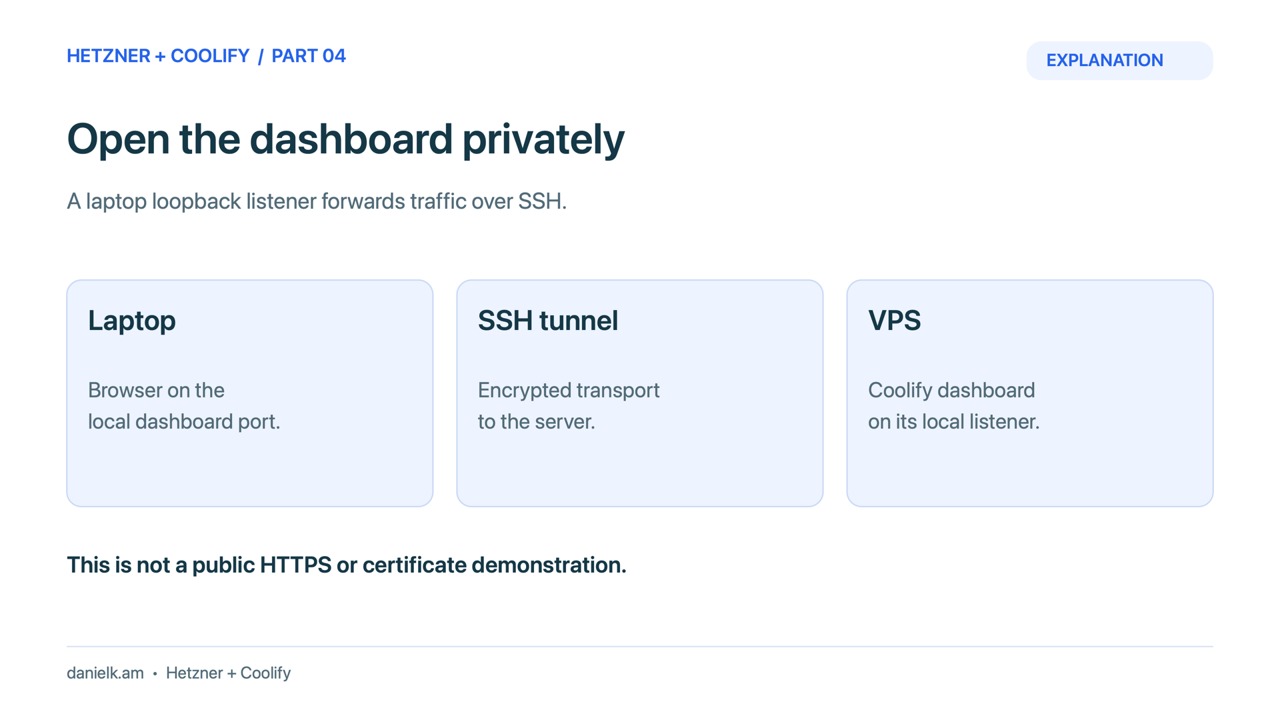
Use an encrypted SSH tunnel for the first Coolify administrator login. The dashboard can stay closed to the public while your browser reaches it through a loopback address on your laptop.
Part 4: Open Coolify through an SSH tunnel, then add HTTPS
Video draft: Private SSH tunnel access is explained. Public DNS and HTTPS have not been configured or verified in this demonstration. Audio, captions and editing should receive a full review before publication.
Open the private dashboard
Prerequisites: a healthy Coolify installation, a verified SSH host identity, and the private laptop key from part 2. Keep the provider firewall restricted to SSH from your current operator address. Open a second terminal and leave this process running.
ssh -o ExitOnForwardFailure=yes -N -L 127.0.0.1:18000:127.0.0.1:8000 -i ~/.ssh/hetzner_tutorial root@SERVER_IPWindows PowerShell uses the same flags on one line:
ssh -o ExitOnForwardFailure=yes -N -L 127.0.0.1:18000:127.0.0.1:8000 -i "$env:USERPROFILE\.ssh\hetzner_tutorial" root@SERVER_IP- Open
http://127.0.0.1:18000in the same laptop’s browser. The HTTP hop stays on loopback; SSH encrypts the remote connection. - Create the first administrator account immediately, with a unique password saved in your password manager. Keep credential entry outside recordings.
- Follow the installed onboarding prompts and validate the local server. Continue only when validation succeeds.
- Enable the supported account security options and preserve recovery access before closing your SSH session.
Coolify warns that the first person to complete initial registration becomes administrator. The private tunnel prevents this tutorial from leaving an unclaimed setup page exposed publicly. Coolify: Start with self-hosted.
If localhost refuses the connection
Check that the tunnel terminal is still running and the Mac or laptop is on the expected network. If the tunnel reports that the local address is already in use, choose another unused local port and use that port in the browser. If SSH connects but the dashboard fails, check curl -fsS http://127.0.0.1:8000/api/health on the server. Do not open port 8000 publicly to fix a stopped local process.
For this tutorial’s loopback dashboard, realtime updates and the web terminal also needed private forwards for 6001 and 6002. If your browser’s installed version requests those exact local ports, add -L 127.0.0.1:6001:127.0.0.1:6001 -L 127.0.0.1:6002:127.0.0.1:6002 to the tunnel. Confirm that both ports are unused locally. Keep them loopback-only and test the actual terminal/realtime result.
Optional public HTTPS route
- Choose a dashboard hostname under a domain you control, such as
coolify.example.com. - Create its DNS A record pointing to the server IPv4 address. Publish an AAAA record only if that IPv6 path also works.
- Add provider firewall rules for required public web traffic on ports 80 and 443. Keep SSH scoped to your operator address.
- Set the full HTTPS instance domain in the installed Coolify settings and save. Allow DNS and certificate issuance to finish.
- Open a fresh tab at the HTTPS hostname. Check the certificate, sign-in, realtime updates, and web terminal.
- Keep direct public access to 8000, 6001, and 6002 closed once their HTTPS routes work. Close your tunnel only after confirming the replacement access path.
Use the installed version’s Coolify: Firewall requirements. A provider network firewall avoids assuming that a local UFW rule covers every Docker-published port. The tutorial environment verified private SSH access, not public DNS/TLS. Treat this section as the documented next configuration and verify it on your own domain.
Return to the Hetzner and Coolify series
When the checks in this lesson pass, continue with part 5.