Test a restore before depending on a backup. For this static demo, that means restoring its source and deployment configuration, rebuilding it, and checking the original page and health response. Databases, uploaded files, and Coolify itself need separate recovery plans.
Part 8: Back up a static VPS app, test restoration, and clean up charges
Video draft: Explanation and summarized results of the same-server static-file restore. Database, off-server and full-VPS restoration remain separate checks. Audio, captions and editing should receive a full review before publication.
Know what the demo stores
The sample app has no visitor database or writable application volume. Its page and nginx/Compose configuration can be rebuilt from source. A named Docker volume would survive ordinary container replacement, but it would still be lost with the server unless separately backed up. Keep the source history and the data recovery plan distinct.
Make an explicit static backup
Run this on a disposable copy of the minimal four-file package from part 6, with Docker Compose available. Replace the path with the actual app directory. The archive allowlist intentionally excludes secrets. Review it for your app rather than archiving an entire home directory.
set -eu
cd /PATH/TO/YOUR/STATIC-APP
backup_dir=$(mktemp -d /tmp/static-app-backup.XXXXXXXX)
chmod 700 "$backup_dir"
sha256sum Dockerfile nginx.conf compose.yaml site/index.html > "$backup_dir/files.sha256"
tar -czf "$backup_dir/app.tar.gz" Dockerfile nginx.conf compose.yaml site/index.html
chmod 600 "$backup_dir/app.tar.gz"
(cd "$backup_dir" && sha256sum app.tar.gz > app.tar.gz.sha256)
printf 'Backup directory: %s\n' "$backup_dir"
These commands target a Linux VPS, where sha256sum is available. Keep the displayed backup path for the following commands. A copy in /tmp on the same server is only a restore exercise. It is not durable or off-server protection. Move validated backups to protected storage outside the server before relying on them operationally.
Exercise a harmless change and restore it
- Confirm the baseline page shows Version 1.0 and
/healthzreturnsok. Record the running container health. - On the disposable app only, change the visible badge to
Recovery drilland add a harmless comment tonginx.conf. - Rebuild using that app’s documented Compose command. Verify the changed badge is served.
- Verify the saved archive checksum before extracting, then restore only your trusted archive into the same disposable app directory.
- Compare every restored file hash with the baseline. Rebuild and verify Version 1.0,
/healthz, and container health again.
# Run in the same shell, from the app directory, with backup_dir still set.
set -eu
(cd "$backup_dir" && sha256sum -c app.tar.gz.sha256)
tar -xzf "$backup_dir/app.tar.gz" -C .
sha256sum -c "$backup_dir/files.sha256"
docker compose -f compose.yaml up --build -d
docker compose -f compose.yaml ps
The base Compose file has no host port, so use the configured proxy or private container SSH tunnel from part 6 for page checks. If using a local-only override, include the same override on every rebuild command. Do not extract untrusted archives or run this on an unrelated live application.
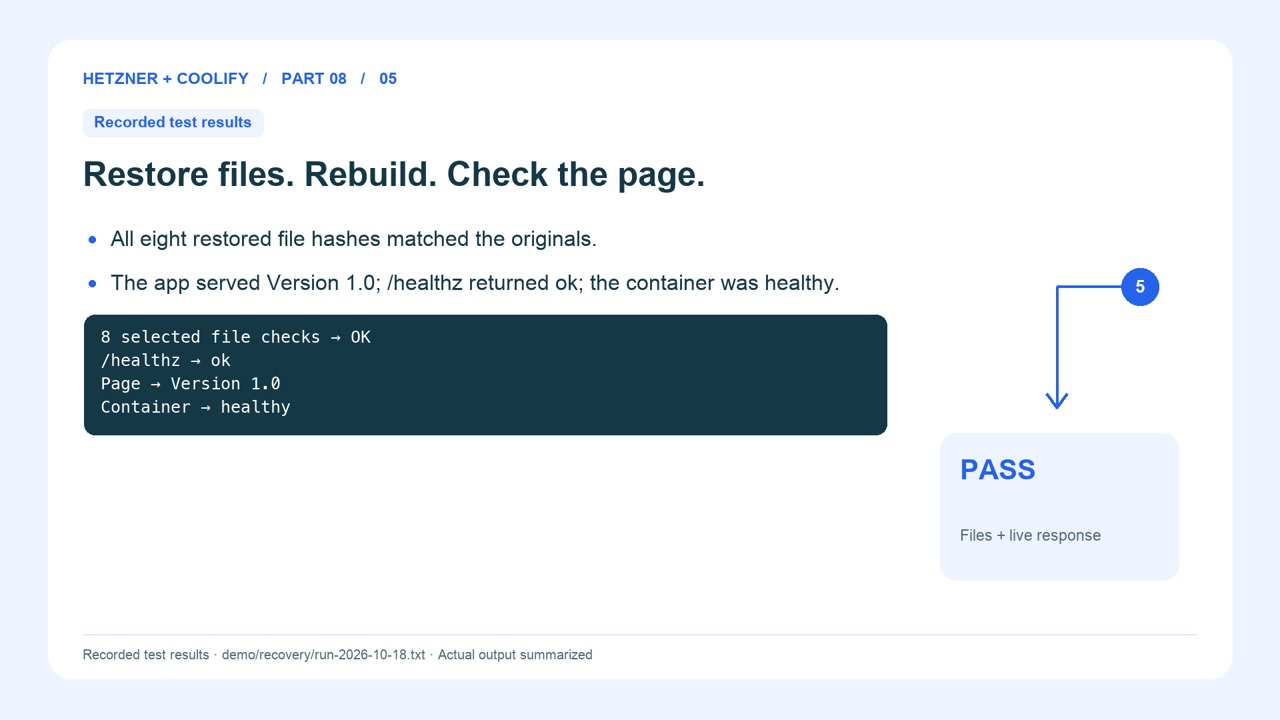
The tutorial’s separate static demo exercise restored eight explicitly selected public files, verified every original hash, rebuilt the original image, and returned a healthy Version 1.0 response. That was a same-server content/configuration test. It did not restore a database, Coolify configuration, off-server backup, or whole VPS.
Plan the recovery your real app needs
For databases, use the engine’s consistent backup method and test restoring into an isolated database. For uploads and named volumes, identify the exact paths and restore them with the application’s ownership and permissions. For Coolify, follow the supported instance backup procedure and preserve the protected source .env and encryption key without exposing them. Coolify: Start with self-hosted explains why that key matters. A provider disk backup or snapshot can help with server recovery, but it does not prove an application-consistent restore.
Maintain or delete deliberately
- Review disk space, memory, error logs, backup results, and available operating-system, Coolify, and image updates. Set a maintenance window and recovery point before changing them.
- If ending the exercise, export the source and recovery material you need. Revoke tutorial API tokens and remove unused repository deploy keys.
- Read the Hetzner server deletion dialog, verify the tutorial server identity, and delete only when its data is no longer needed.
- Inspect retained primary IPs, snapshots, backups, volumes, and other resources. Remove only the tutorial resources you intend to stop paying for.
- Check the resulting resource list and billing state. A powered-off server still incurs charges until deletion; retained resources may also keep charging. Hetzner: Billing FAQ.
The filming server is still retained for production work. This draft does not claim it has been deleted or that its final invoice is zero.