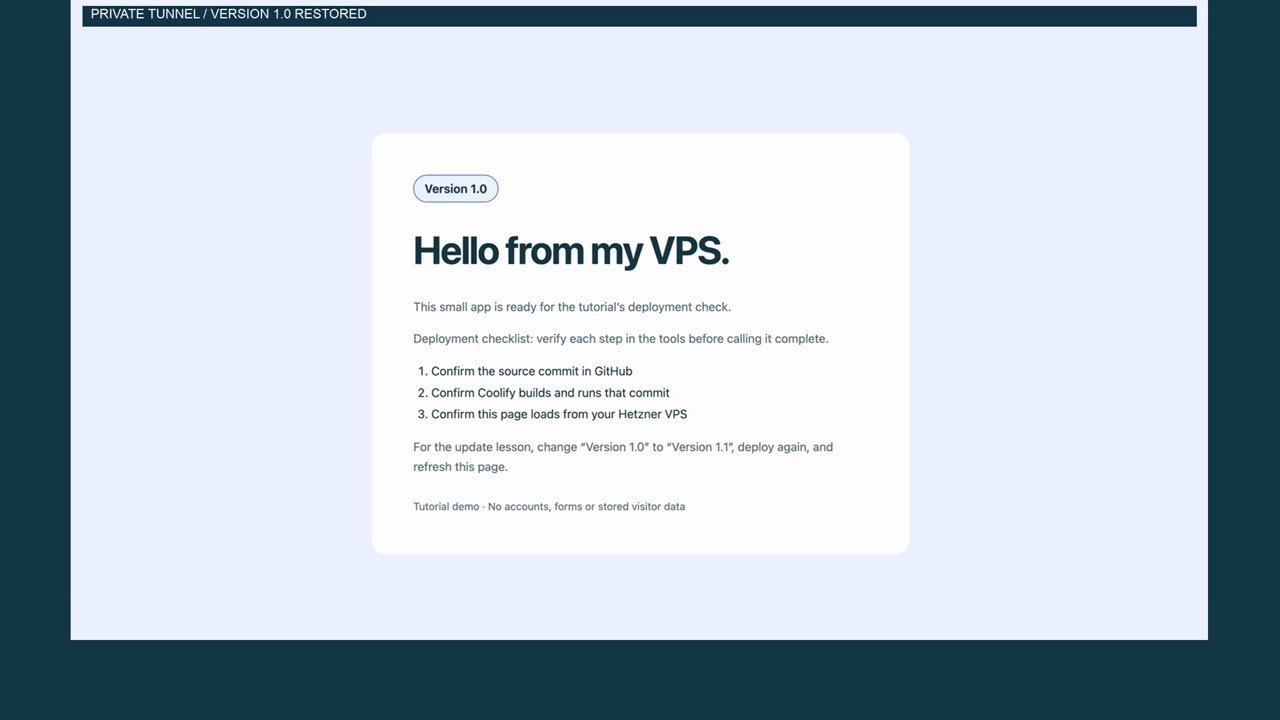
Deploy a small static app from a known Git commit, check the running page, then practise a pinned update and rollback. Pinning makes the intended source explicit, but you still need health and page checks after each deployment.
Part 6: Deploy Docker Compose with Coolify, update it, and roll back a commit
Video draft: Recorded Coolify deployment, update and pinned rollback. The GitHub commit was prepared before recording; build waits are shortened. Access uses a private SSH tunnel. Audio, captions and editing should receive a full review before publication.
Create these four files
Use a new repository-root directory with compose.yaml, Dockerfile, nginx.conf, and site/index.html. The tutorial image is pinned to the reviewed nginx manifest. Check current upstream security updates before using it for a long-lived service. The package uses container port 8080 and no published host port.
compose.yaml
services:
  web:
    build:
      context: .
      dockerfile: Dockerfile
    restart: unless-stopped
    expose:
      - "8080"
    read_only: true
    tmpfs:
      - /tmp:size=16m,mode=1777
    cap_drop:
      - ALL
    security_opt:
      - no-new-privileges:true
    healthcheck:
      test: ["CMD", "wget", "-q", "-O", "/dev/null", "http://127.0.0.1:8080/healthz"]
      interval: 10s
      timeout: 3s
      retries: 3
      start_period: 5s
    logging:
      driver: json-file
      options:
        max-size: "5m"
        max-file: "2"
Dockerfile
# Official nginx stable-alpine manifest verified on Docker Hub, 2026-10-18.
FROM nginx:stable-alpine@sha256:970364228b1e4f932abc22d321932816782cca8a20b85a77552a7cfe9acfb3b5
COPY nginx.conf /etc/nginx/nginx.conf
COPY site/ /usr/share/nginx/html/
USER nginx
EXPOSE 8080
# Bypass root-oriented entrypoint scripts; our config is ready to run.
ENTRYPOINT ["nginx"]
CMD ["-g", "daemon off;"]
nginx.conf
worker_processes auto;
pid /tmp/nginx.pid;
error_log /dev/stderr warn;
events { worker_connections 256; }
http {
    include /etc/nginx/mime.types;
    default_type application/octet-stream;
    access_log /dev/stdout;
    server_tokens off;
    client_body_temp_path /tmp/client_temp;
    proxy_temp_path /tmp/proxy_temp;
    fastcgi_temp_path /tmp/fastcgi_temp;
    uwsgi_temp_path /tmp/uwsgi_temp;
    scgi_temp_path /tmp/scgi_temp;
    server {
        listen 8080;
        root /usr/share/nginx/html;
        index index.html;
        add_header X-Content-Type-Options nosniff always;
        add_header Referrer-Policy no-referrer always;
        location / { try_files $uri $uri/ =404; }
        location = /healthz { access_log off; default_type text/plain; return 200 "ok\n"; }
    }
}
site/index.html
<!doctype html>
<html lang="en"><head><meta charset="utf-8"><meta name="viewport" content="width=device-width, initial-scale=1"><title>My first self-hosted app</title></head>
<body><main><span class="version">Version 1.0</span><h1>Hello from my VPS.</h1><p>Deployment checklist: confirm the source revision, container health, and actual page.</p></main></body></html>
Add .gitignore and .dockerignore entries for .git, .env, and .env.*. If supplying a safe example, allow !.env.example. This app requires no secrets. Do not add a real environment file to Git or the image.
Deploy the known revision
- Commit the files and record the full SHA. Check the read-only private repository connection from part 5.
- Create a Coolify project and environment, then an Application from the private Git repository. Choose the Docker Compose build pack.
- Set the base directory to
/and the Compose file to/compose.yaml. Parse or inspect the service configuration. - Select the intended branch and full commit SHA where the installed version exposes revision pinning. Save the source settings.
- Deploy once. Watch the build/deployment log, then wait for the service health check.
- Check
/healthzreturnsokand the page displays Version 1.0. Verify the deployed commit matches your intended SHA.
Coolify: Docker Compose describes the Git-based Compose build path. A Docker Compose Application and an empty Compose Service are different routes. This lesson uses the Git-based Application so the revision is visible.
Reach the app
For a public app, configure the web service’s domain in Coolify to target internal port 8080, point DNS at the server, and verify HTTPS. Do not add ports: merely to bypass the proxy. The recorded tutorial kept the app private: it read the running container’s private IP and forwarded a laptop loopback port to it:
On the VPS, first list running containers and identify the one belonging to the intended Coolify application. Match the name to that app’s deployment log or app identifier, because a server can have more than one service named web. Inspect only the selected runtime fields:
docker ps --format 'table {{.ID}}\t{{.Names}}\t{{.Status}}'
APP_CONTAINER='paste-the-actual-tutorial-app-container-name'
docker inspect --format '{{.State.Health.Status}}' "$APP_CONTAINER"
docker inspect --format '{{range .NetworkSettings.Networks}}{{println .IPAddress}}{{end}}' "$APP_CONTAINER"
Choose the private address for the app’s actual Docker network. Do not paste a full docker inspect dump into shared notes because configuration can contain secrets. From the laptop, replace CONTAINER_IP and SERVER_IP in this tunnel command with the observed values:
ssh -N -L 127.0.0.1:18089:CONTAINER_IP:8080 -i ~/.ssh/hetzner_tutorial root@SERVER_IPRead CONTAINER_IP from the actual running app container with docker inspect, and recheck it after container replacement. Open http://127.0.0.1:18089. This verifies private HTTP through SSH, not public TLS.
Update, then return to the original commit
- Change only the badge from
Version 1.0toVersion 1.1, commit, and push. Record the new full SHA. - Set Coolify’s selected revision to that SHA, save, and deploy. Check the deployment result, running revision,
/healthz, and visible Version 1.1. - For the pinned rollback exercise, set the selected revision back to the recorded original SHA, save, and deploy again.
- Confirm Version 1.0, health, and the original running SHA. Keep the update commit in Git history for inspection.
The tutorial verified this exact manual update-and-pinned-rollback pattern. Automatic webhook deployment was not enabled. Another source-level option is git revert UPDATE_COMMIT, pushing and deploying the new revert commit. Neither option reverses a database migration or recovers deleted user data.
If deployment succeeds but the page fails
Check the container’s health log, nginx listen port, selected Compose path, proxy target, and actual route. A green build means the image built; it does not prove that DNS, TLS, or the browser route works. Keep the last known-good SHA until the update is checked.
Return to the Hetzner and Coolify series
When the checks in this lesson pass, continue with part 7.