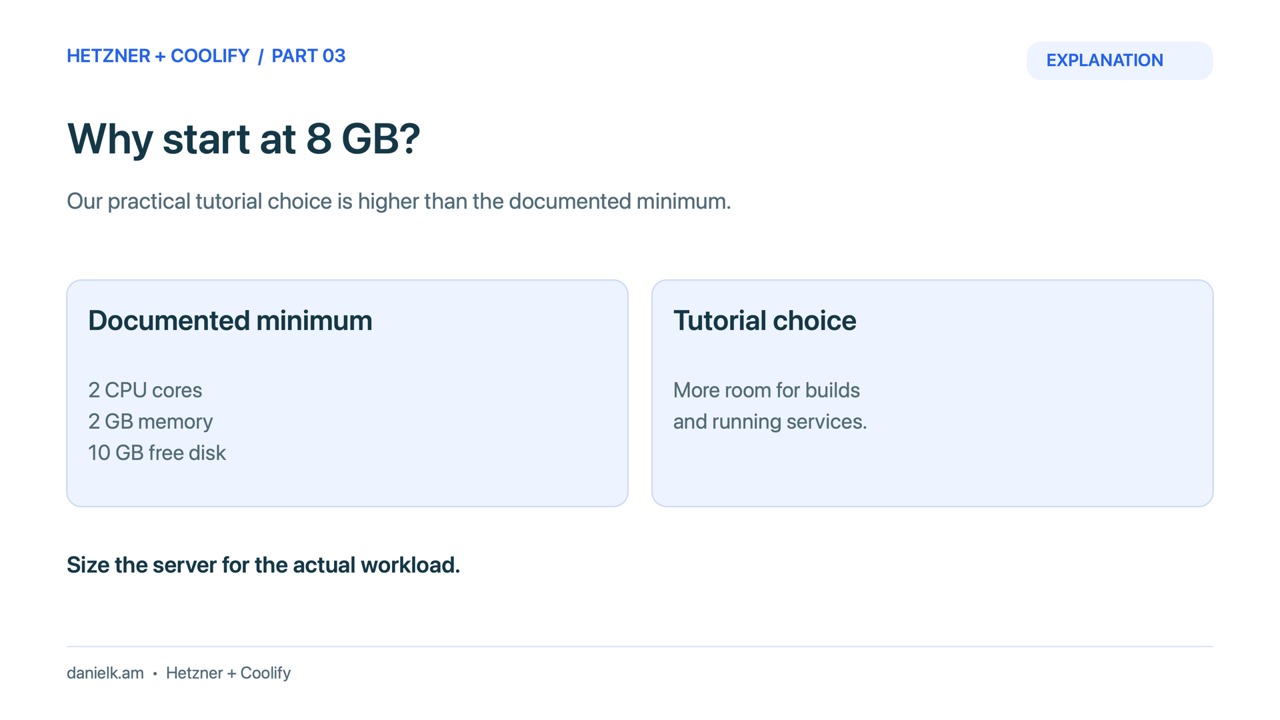
Choose an 8GB server for this tutorial to leave room for Coolify, a small application, and build spikes. Check the CPU architecture as carefully as the RAM: an ARM64 plan needs compatible container images and build dependencies.
Part 3: Choose an 8GB Hetzner server and the Coolify image
Video draft: Server and image selection are explained using the tested tutorial configuration. The provider-console creation flow was not recorded. Audio, captions and editing should receive a full review before publication.
8GB is a starting choice
Coolify’s documented baseline is 2 CPU cores, 2GB RAM, and 10GB free disk. Builds and applications need more resources. A static page needs less than a large dependency build or a database, so 8GB is a teaching choice rather than a promise that every workload fits. Coolify: Start with self-hosted.
The tutorial used a CAX21 in Helsinki: ARM64, 4 cores, 8GB RAM, and an 80GB disk. A smaller x86 choice was unavailable at creation, while another x86 option cost more. Your quote and stock may differ. Choose x86 when a required image or binary does not support ARM64. A multi-architecture base image does not establish compatibility of every extra dependency.
Create the server
- Open the dedicated tutorial project and add a server.
- Choose a location appropriate for your users and budget. Read the current CPU, RAM, disk, architecture, and price.
- Open the Apps image selection and choose Coolify. Hetzner documents this image on Ubuntu 24.04, with installation activated at first login. Hetzner: Coolify App.
- Select the laptop public key from part 2. Check its name and fingerprint.
- Give the server a recognisable tutorial name. Review IPv4/IPv6 and optional billable features.
- Attach a provider firewall that allows SSH only from your current operator address for initial setup. Keep dashboard and app ports closed publicly while bootstrapping.
- Read the final quote, create once, and wait for provisioning. Keep the server address in private setup notes.
Activate and verify Coolify
Connect with the dedicated laptop private key after verifying the SSH host fingerprint. On this App image, the first SSH login activates the installer. Wait for it to finish, then check the actual services rather than relying on its final message:
docker ps --format 'table {{.Names}}	{{.Status}}'
curl -fsS http://127.0.0.1:8000/api/health
Expect healthy Coolify, PostgreSQL, and Redis services and an OK health response. The next lesson also checks the real browser registration page through an SSH tunnel. A plain Ubuntu image takes a different installation route; do not run a generic installer on top of this App image without first establishing what is already installed.
When the installer says success but the dashboard is missing
The tutorial encountered a Docker 27.5.1 compatibility problem: an IPv6 gateway was returned with a CIDR suffix, and the helper client could not parse it. The installer still printed success. The actual check showed missing application containers. Moby: Fix network inspect IPv6 gateway address format documents the gateway-format issue, and the Coolify: Official upgrade script contains version-aware handling.
The fix on this new host replaced only an unused Coolify bridge after verifying that it had no attached containers. Do not copy a network-deletion command onto a server with workloads. Preserve configuration, inspect the exact error, and follow current version-specific guidance. Once containers and local health pass, continue to the private browser check.
Return to the Hetzner and Coolify series
When the checks in this lesson pass, continue with part 4.