Turn on quantity tracking when WooCommerce needs to know how many units you have. A product marked In stock without quantity tracking doesn't give WooCommerce a count to work from.
In this practice, you'll give a fictional notebook a quantity of three, prevent backorders, and check what happens when a shopper asks for more than three. You'll also check the zero-stock result without placing an order.
Video companion
In this guide
- Before you start
- 1. Check the store's stock-management setting
- 2. Give the product a quantity
- 3. Test a quantity that fits
- 4. Ask for more than is available
- 5. Check the out-of-stock state
- Understand the alternative settings
- Finish and restore
- Sources
Before you start
Use an isolated WooCommerce practice store and a simple physical product named Practice ruled notebook. It should have a price and images, as in the simple-product lesson. Use a published fixture only inside that isolated store for the cart checks.
These instructions follow WooCommerce's documented inventory settings and classic product editor. They don't cover variation stock, a warehouse system or stock synchronisation with another platform.
Record the product's existing quantity, stock-management choice, backorder setting and Sold individually setting. Also note the store's out-of-stock threshold. These are the values you'll restore afterwards.
1. Check the store's stock-management setting
Open WooCommerce → Settings → Products → Inventory. Ensure Enable stock management is selected in the practice store, then save if you changed it.
This store-level setting allows quantity tracking. Each product still needs its own stock-management choice and quantity.
For this exercise, use an out-of-stock threshold of 0. Changing that threshold affects the practice store, not just this product, so note the previous value first. A higher threshold can make a product unavailable before its quantity reaches zero.
Leave notifications out of this exercise. Enabling an email notification setting doesn't prove that an email was sent or delivered.
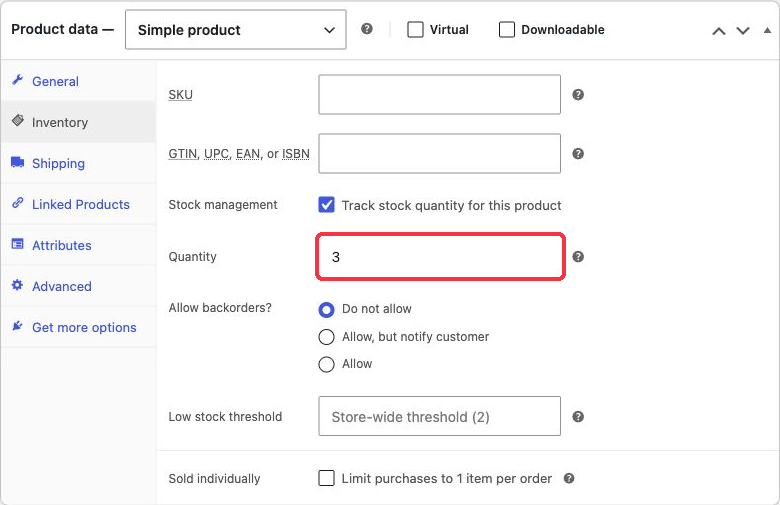
Isolated practice store: WordPress 7.1.3 and WooCommerce 11.2.1. WooCommerce inventory settings with stock quantity 3 and backorders disabled.
2. Give the product a quantity
Open Practice ruled notebook and choose Product data → Inventory. Enable the product's Stock management option, which may be described as tracking stock quantity in your editor.
Enter 3 in Quantity. Under Allow backorders?, choose Do not allow. This tells the exercise to stop accepting quantities beyond available stock rather than treating them as future supply.
Leave Sold individually unchecked. That option limits the item to one per order and would interfere with a test that asks for several notebooks.
Save with Update for the published fixture. Reload the editor and check all four saved settings: tracking on, quantity 3, no backorders, and no one-per-order restriction.
3. Test a quantity that fits
Empty the practice cart first so an old notebook line doesn't affect the result. Open the notebook's product page and add 2 units.
Inspect the cart. Check the product name and quantity, then record what you see. You're checking the allowed cart quantity, not making a purchase.
Adding an item to a cart is not a completed sale. Don't reduce your stock worksheet by two just because this cart contains two units. Stock reservations and reductions belong to particular checkout and order events, which are outside this small exercise.
4. Ask for more than is available
Try to increase the notebook's cart quantity to 4 and apply the cart update. Alternatively, use the product page's quantity control if your cart doesn't offer editing.
With three available units and backorders disabled, the store should prevent an accepted cart quantity of four. Depending on the interface, the control may limit the quantity or the store may show an availability message. Check the final cart quantity, rather than relying on the message alone.
If four units remain accepted, check that you're testing the correct product and that an old cart line isn't confusing the result. Reopen the saved inventory settings. Confirm quantity tracking is enabled at both levels and backorders are disabled. Don't work around an unexpected result by changing the exercise's claimed outcome.
5. Check the out-of-stock state
Empty the cart. In the product editor, change the quantity to 0, save and reload. Open the product page again and check whether the notebook can be added to the cart.
The out-of-stock fixture should not be purchasable with this no-backorder setup. It may disappear from catalogue listings if the store's Out of stock visibility option hides unavailable items. A missing catalogue card and an unavailable direct product page are different observations, so check the actual product address as well.
Exact stock messages depend on the theme and stock-display settings. A page that doesn't show a numeric stock count doesn't automatically mean tracking is disabled. The saved quantity and actual purchase restriction are stronger checks.
Understand the alternative settings
When quantity tracking is off, you choose a stock status instead of entering a tracked count. That can suit a product whose availability you manage manually, but it won't maintain a numerical inventory for you.
Allowing backorders is a deliberate promise to accept demand beyond available stock. It isn't a repair for an incorrect quantity. The Allow, but notify customer choice communicates a backorder condition, while Do not allow is the appropriate choice for this exercise.
Finish and restore
You have finished when quantity 3 accepts an allowed quantity, rejects an excessive one, and quantity 0 prevents purchase under the chosen settings. Keep those three observations beside the saved settings.
Restore the fixture's original quantity, tracking, backorder and Sold individually values. Restore the store threshold if you changed it and empty the cart. No order, payment or notification test is needed to complete this lesson.