Use product categories to group items a shopper would look for together. For this exercise, you'll create a Notebooks category, add Ruled notebooks beneath it, then check that two practice products have the right assignments.
A product category belongs to your shop catalogue. It is separate from the categories used for WordPress blog posts. Creating one also doesn't add a link to your site's navigation automatically. You'll check the category itself before deciding whether it needs a menu link.
Video companion
In this guide
- Before you start
- 1. Make a small category map
- 2. Create the parent category
- 3. Add the child category
- 4. Assign the products and save
- 5. Check the relevant category listing
- Practise a correction
- Undo the exercise
- Sources
Before you start
Use an isolated practice store with WooCommerce installed and permission to edit products. The steps below follow the standard product-category screen and classic product editor described in WooCommerce's documentation. A different editor or theme can arrange the controls differently.
Prepare two fictional products: Practice ruled notebook and Practice plain notebook. If you need help creating them, start with adding a simple product with photos. Use your own accurate descriptions for real products. These names are exercise data.
Keep the products as drafts while organising them. To check what a shopper sees on a category page, use published fixtures only inside a practice store that is isolated from real customers, orders, mail and stock systems. Don't publish practice items on your real shop.
1. Make a small category map
Write down this structure before changing anything:
- Notebooks is the parent category.
- Ruled notebooks is its child category.
- Practice ruled notebook belongs to Ruled notebooks.
- Practice plain notebook belongs directly to Notebooks.
A child category has one parent. You can create more levels, but this exercise needs only two. The point is to separate a broad group from a useful subgroup, not build a category for every detail of an item.
Take a note of each product's current category assignments so you can restore them later.
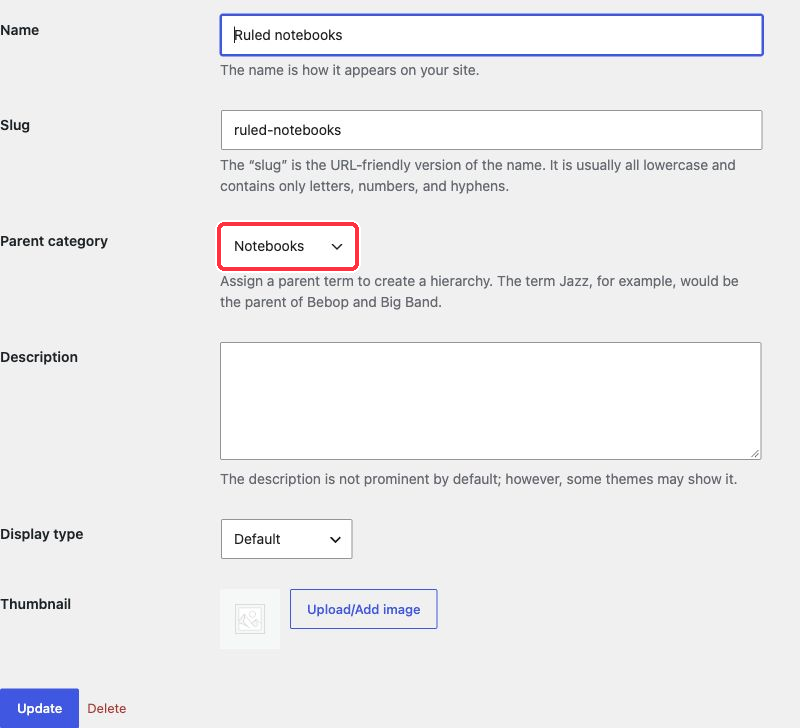
Isolated practice store: WordPress 7.1.3 and WooCommerce 11.2.1. Product category editor showing Ruled notebooks under the Notebooks parent category.
2. Create the parent category
Open Products → Categories. In Add new category, enter Notebooks as the name. Leave Parent category at its top-level option.
The slug is the URL-friendly name. You can leave it empty and let WooCommerce generate one. For a real existing category, avoid changing its slug casually because people may already use its address.
Leave the description and category image empty for this exercise. Both are optional, and whether they appear depends on the theme. Use Products as the display type for a straightforward product-listing exercise, then add the category.
Check that Notebooks appears in the category list. If that name already exists in the practice store, use the existing correct category rather than creating a confusing duplicate.
3. Add the child category
Create another category named Ruled notebooks. This time choose Notebooks as its parent. Use the same product-listing display choice, then add it.
Check the hierarchy in the category list. If you accidentally created two top-level categories, edit Ruled notebooks and choose Notebooks as its parent. Save and check again.
The category hierarchy controls how the groups relate to each other. It doesn't decide which product belongs in each group. You'll make those assignments next.
4. Assign the products and save
Open Practice ruled notebook. Find its Product categories panel and select Ruled notebooks. Remove any unrelated exercise assignment, then save the draft or update the published practice fixture, according to its current status.
Open Practice plain notebook and select Notebooks without selecting Ruled notebooks. Save it too.
WooCommerce has a default product category, commonly named Uncategorized. A product without another category is assigned to the default. You don't need to rename or delete that default to complete this exercise.
Reload each product editor. Confirm that the saved selections match the category map. Checking a box is only the input. The reloaded selection tells you what was saved.
5. Check the relevant category listing
In the isolated store, open the Ruled notebooks category's View link. Use the actual category address rather than guessing it from the name. Confirm that the ruled notebook appears and the plain notebook does not.
Next inspect the parent Notebooks listing. Depending on the category display settings and theme, it may present products, subcategories or both. A parent listing can include products from its child categories. Don't treat a child-category product appearing under its parent as a mistaken assignment.
If the page is empty, check the product's saved category, publication state and catalogue visibility. A draft fixture isn't evidence that the public category listing is broken. If the page shows category tiles instead of products, inspect the display type and active theme before changing the products.
Practise a correction
Temporarily assign Practice plain notebook to Ruled notebooks as well. Save it and inspect the child listing. Then remove that assignment, save again and reload the listing.
You have finished when the ruled notebook remains in the child group, the plain notebook is outside it, and both assignments survive an editor reload. This checks that you can correct a catalogue mistake, not just create a category.
Undo the exercise
Restore each fixture's original category assignments. If you no longer need the new categories, check which products use them before removing them. Keep any category used by another exercise. Leave your real shop's categories and navigation untouched.