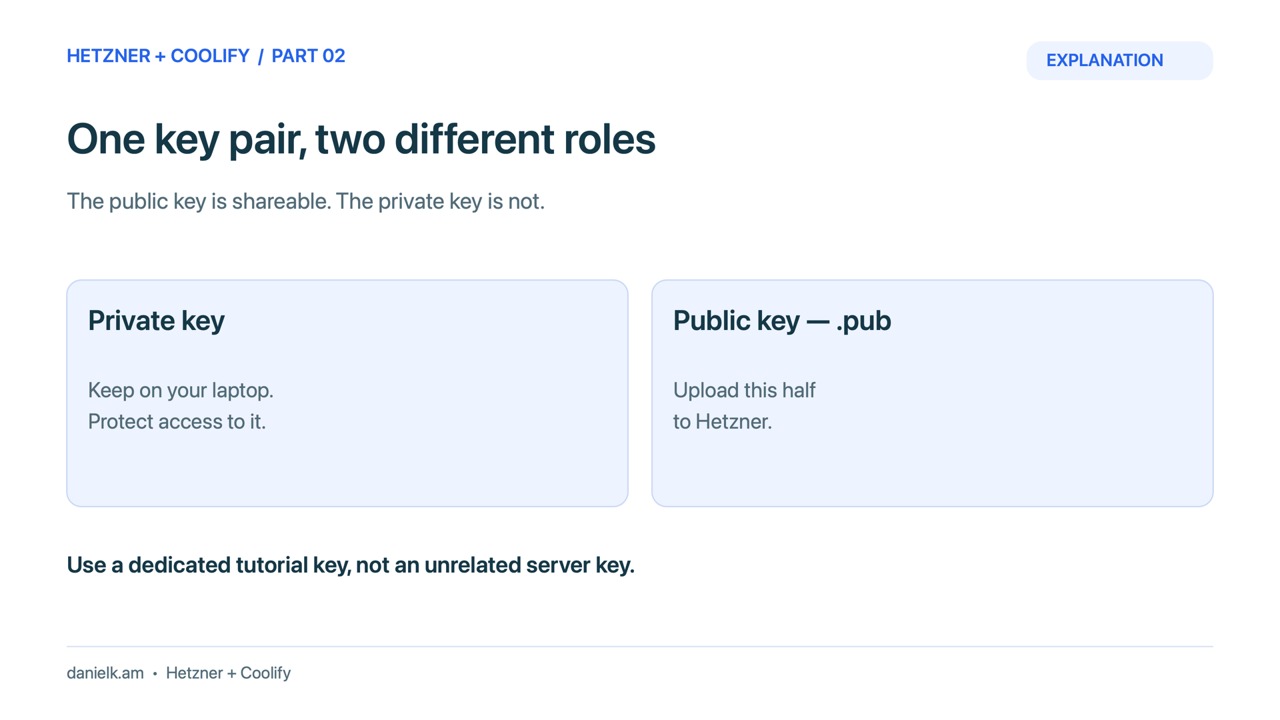
Create a dedicated Ed25519 SSH key for your laptop, protect it with a passphrase, and upload only its public .pub file to Hetzner. The private file stays on your computer.
Part 2: Create an SSH key for Hetzner on Mac or Windows
Video draft: SSH key creation is explained with command cards and diagrams. No personal private-key material appears. Audio, captions and editing should receive a full review before publication.
Check the client and avoid overwriting a key
On Mac, use Terminal. On Windows, use PowerShell with OpenSSH Client installed. First run ssh -V. If Windows does not recognise it, install the Windows OpenSSH Client optional feature before continuing. GitHub: Generating a new SSH key documents the supported key-generation flow.
The commands below use hetzner_tutorial as a new filename. If that name already exists, choose a different name everywhere below. Do not accept an overwrite prompt for a key you still use.
Mac Terminal
ssh -V
mkdir -p ~/.ssh
chmod 700 ~/.ssh
ls -l ~/.ssh/hetzner_tutorial*
ssh-keygen -t ed25519 -C "hetzner-tutorial" -f ~/.ssh/hetzner_tutorial
cat ~/.ssh/hetzner_tutorial.pub
ssh-keygen -lf ~/.ssh/hetzner_tutorial.pub
A “no matches found” or “no such file” result from the filename check can mean the new key does not exist yet. Confirm the directory and filename before generating it. Enter a strong passphrase privately when prompted. SSH does not display the characters as you type.
Windows PowerShell
ssh -V
New-Item -ItemType Directory -Force "$env:USERPROFILE\.ssh" | Out-Null
Get-ChildItem "$env:USERPROFILE\.ssh\hetzner_tutorial*"
ssh-keygen -t ed25519 -C "hetzner-tutorial" -f "$env:USERPROFILE\.ssh\hetzner_tutorial"
Get-Content "$env:USERPROFILE\.ssh\hetzner_tutorial.pub"
ssh-keygen -lf "$env:USERPROFILE\.ssh\hetzner_tutorial.pub"
Upload the public half
- Open the SSH keys area for the Hetzner Cloud project, or the SSH key selection in server creation.
- Copy the complete line from
hetzner_tutorial.pub, starting withssh-ed25519. - Add it as
Tutorial laptopand save. - Compare its SHA256 fingerprint with the local
ssh-keygen -lfresult. - Select that key when creating the server. The provider needs the public key at creation to install it for initial access.
Make the first connection
After server creation, replace SERVER_IP with its actual address:
ssh -i ~/.ssh/hetzner_tutorial root@SERVER_IPIn Windows, use -i "$env:USERPROFILE\.ssh\hetzner_tutorial" instead. Before accepting a first-connection host key, compare the fingerprint with a trusted server-side source such as the provider console. A fingerprint shown by the network connection alone is not independent identity proof. Hetzner: Connecting to the server.
Fix the common errors
Permission denied (publickey) means authentication failed. Check the server address, user, selected key, and actual private-key path. A timeout is different: check server readiness, your current public IP, and the provider firewall. Keep SSH scoped to your operator IP rather than opening it to everyone to diagnose a filename problem.
Give another device its own key. You can revoke that device’s public key without replacing every laptop’s access. Keep the laptop-to-server key separate from the repository deploy key in part 5.
Return to the Hetzner and Coolify series
When the checks in this lesson pass, continue with part 3.